This page provides step-by-step instructions for submitting final grades. Please review the guidelines and deadlines before submitting to ensure grades are recorded accurately.
Grading Timeline
The items in the grading timeline correspond to tasks that must be completed during the final week of the course.
➡️Wednesday: Ensure you have access to the faculty portal
➡️Thursday: DO NOT SUBMIT. Students have until 11:59 pm Pacific on Thursday to submit
➡️Friday: Submit final grades by 11:59 pm Pacific
➡️Saturday: Portal is closed and inaccessible.
Steps to Submit Final Grades
Step 1: Ensure all assignments are graded.
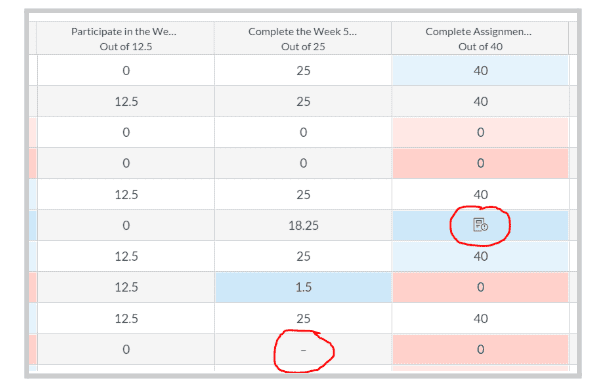
Make sure no hyphens (ungraded assignments) or icons representing submitted assignments are visible in the grade book.
Note: When an assignment is resubmitted, the submission icon reappears in the gradebook. After an initial grade has been made, if a resubmission is made, that icon will not go away unless:
Gradebook: You change the grade to a different value
SpeedGrader: If you want to retain the same grade, you must go into SpeedGrader, click “Use this same grade for the resubmission” under the grade entry field.
Step 2: Access the Portal and Submit Grades
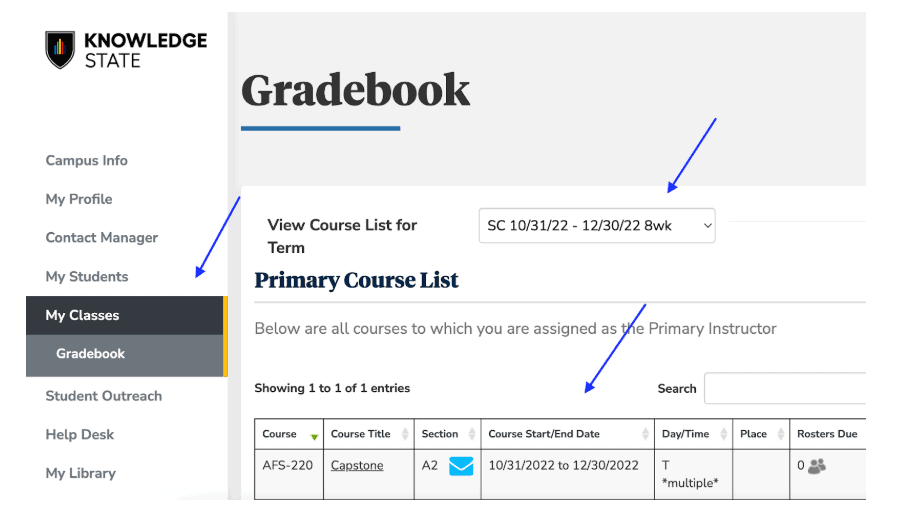
1. From BryanUniversity.edu. Choose “Faculty” from the Top Menu
2. Click the Faculty Portal Homepage
3. Account: select your appropriate account (you may need to change or enter your account)
4. From the Left-Menu Bar, click on My Classes; then, choose Gradebook
5. Ensure you are in the correct Term from the Drop-Down Menu, then click on the link to the desired Class from the list of courses displayed:
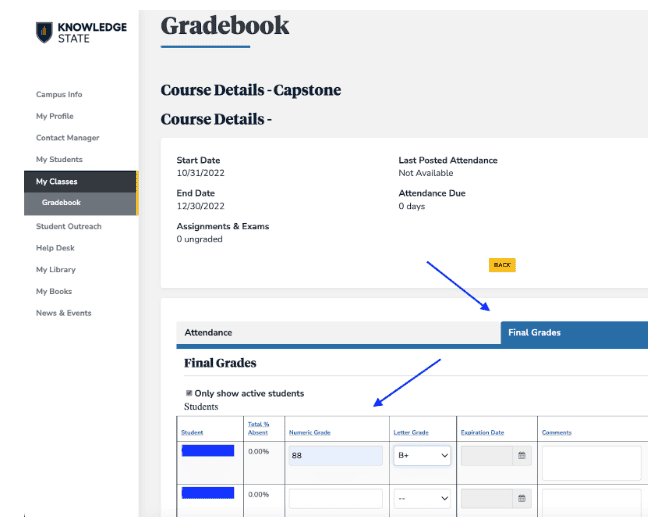
6. Click Final Grades located close to the middle of this page.
7. Enter the grades from the Canvas GradeBook into the ANTHOLOGY Portal (see image below)
Enter the Numerical Grade exactly as it appears in the Total column,including all decimal places (ex. 79.5, 79.53)
Press the “Tab” key – this will populate the Letter Grade (ensure a letter grade is present for each student).
Once all numeric grades have been entered, double-check to ensure that the numbers were correctly listed in Portal.
Click the SAVE FINAL GRADES tab below & to the right of the grade entry table.
Note: Portal may take 5-15 seconds before completing the saving process.
Backup Final Grades Submission Method (Only if Portal is Inaccessible)
In the event that the portal is inaccessible, follow the steps below.