How to Access "MY QC Reviews"

This page shows you where to locate and how to access your Quality Check (QC) reviews. QC reviews provide structured feedback on course setup, engagement, grading, communication, and live session facilitation to support continuous improvement. Use the steps below to view your most recent and past QC reviews, review feedback from your Faculty Success Specialist (FSS), and reflect on recommended next steps for your course.
Steps to Access “My QC Reviews”

Go to: http://tools.bryanuniversity.edu 

Log in using your Bryan University Email address and password

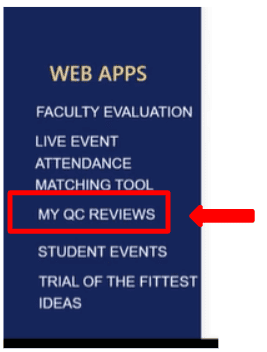
Select My QC Reviews on the left-hand navigation bar.

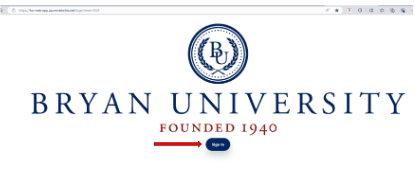
Bryan University logo featuring a circular seal, the text founded 1940, and a blue visit button.
A blue menu listing web application options features the MY QC REVIEWS item highlighted by a red box and arrow.

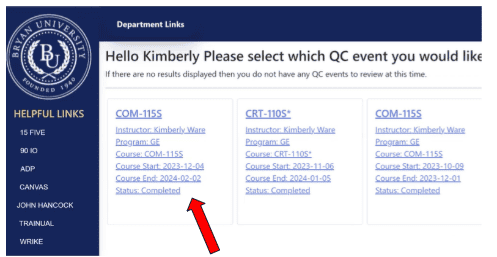
Select the box of the review you would like to access.  Note: Instructors will only be able to access completed reviews.

Webpage asking Kimberly to select a QC event, with a red arrow pointing to a specific date.

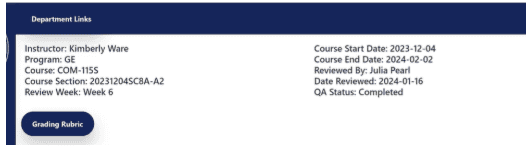
On the top dashboard, the following information is available:

  • Instructor Name
  • Program
  • Course
  • Course Section
  • Review Week
  • Course Start date
  • Course End date
  • Reviewed by
  • Date Reviewed
  • QA status
A department links section showing course CDM-1155 details, review information, and a grading rubric button.

There are 6 sections: Course Setup, Yellowdig, Managing Gradebook, Substantive Instructor Feedback, Instructor Communication, and Live Sessions. 

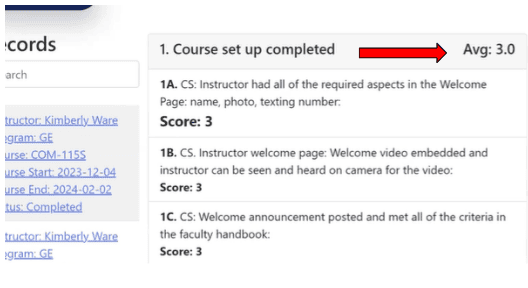
The Average Score for each section is located at the top of each section. Note: The highest score possible is a 3.0

A screenshot of a course setup completion checklist with instructor scores.

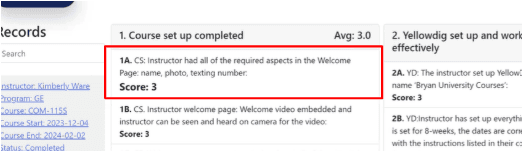
Questions and Scores can be located in each Section.  Note: Use the Grading Rubric to understand the scoring guide.

A list of course records with a red box highlighting instructor setup details and scores.

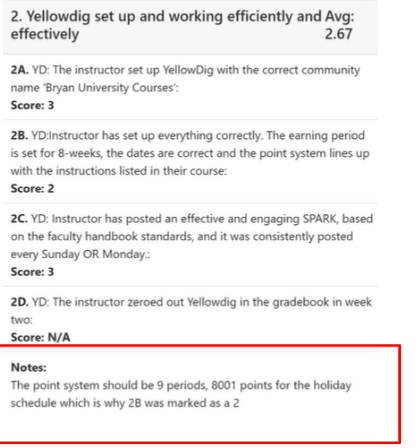
Notes from the Faculty Success Specialist will be located at the bottom of each section. Note: No notes will be left if you receive a score of 3.

YellowDig gradebook feedback showing scores and a note explaining a holiday schedule point deduction.

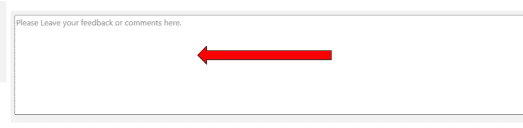
To leave comments or feedback, use the box at the bottom of the review.

A red arrow pointing left next to a feedback text area.

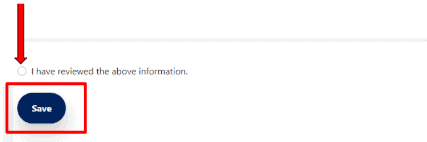
Select “I have reviewed the above information” and select SAVE.

A red arrow and red box highlight a blue Save button located below a checkbox.

Copyright 2025 | Bryan University | 350 West Washington Street, Tempe, AZ 85281

BRYAN UNIVERSITY LOGO SEAL

Copyright 2025 | Bryan University | 350 West Washington Street, Tempe, AZ 85281