
Embed a Video in Canvas Announcements

Videos are a great way to engage students in your Canvas course. You can use Canvas, Studio, or upload an MP4 file directly.

Step 1: Plan Your Video

  • Define your goal: Decide what the video should communicate (e.g., welcome message, tips for success, course updates).

  • Write an outline: Keep it concise. 1–3 minutes is ideal for announcements.

  • Choose your setting: Record in a quiet, well-lit location. Minimize background noise and distractions.

Step 2: Choose Your Tools And Record Your Video

  • Canvas Studio: Record directly in your browser using webcam or screen recording. Canvas Studio allows multiple takes and lets you save the best version directly in your course.
  • Other options: Laptop, smartphone, tablet, or screen recording tools (e.g., Loom, Camtasia, OBS).
  • Recording tips:
    • Speak clearly and maintain eye contact with the camera.
    • Keep your message concise and engaging (1–3 minutes is ideal).
    • Use visuals if helpful (slides, screenshots, or props).
    • Record multiple takes if needed—you can edit later.
    • If recording outside Studio, save your video as an MP4 to ensure Canvas compatibility

Step 3: Embed Your Video

➡️From Canvas Studio

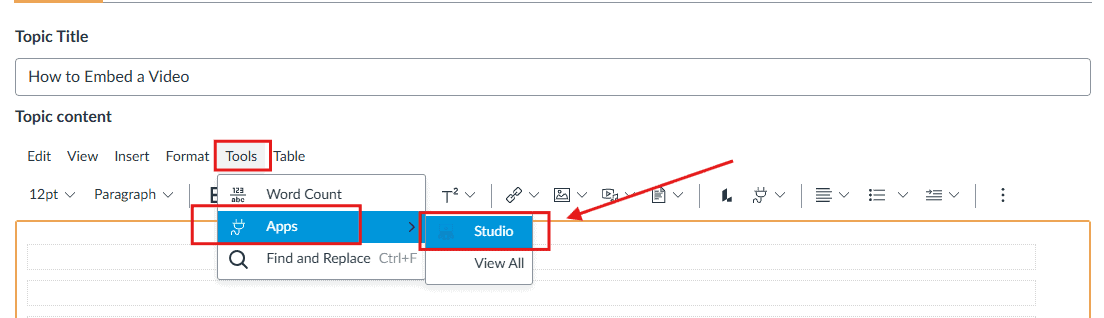
From Canvas Studio: Click Tools > Apps > Studio, select your video, and click Embed.

Note: Embedding a YouTube video follows the same steps—click the Apps (plug) icon, select YouTube, search for your video or paste the link into the search bar, and then click EmbedIf you don’t see YouTube listed under Apps, click “View All” or “All Apps” and search for YouTube.

➡️ Click here to learn how to upload to Canvas Studio.

➡️From Your Computer

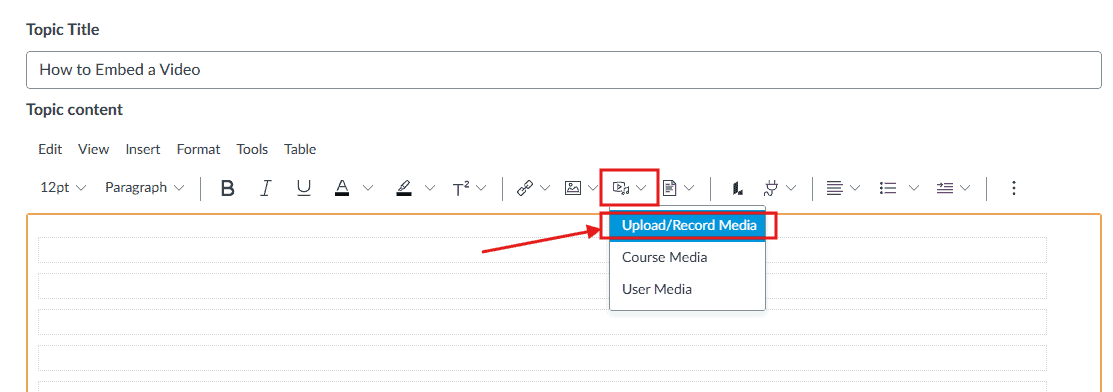
Click the downward caret next to Upload/Record Media, select Upload Media, choose your MP4 file, and click Embed.

Step 4: Publish Your Announcement

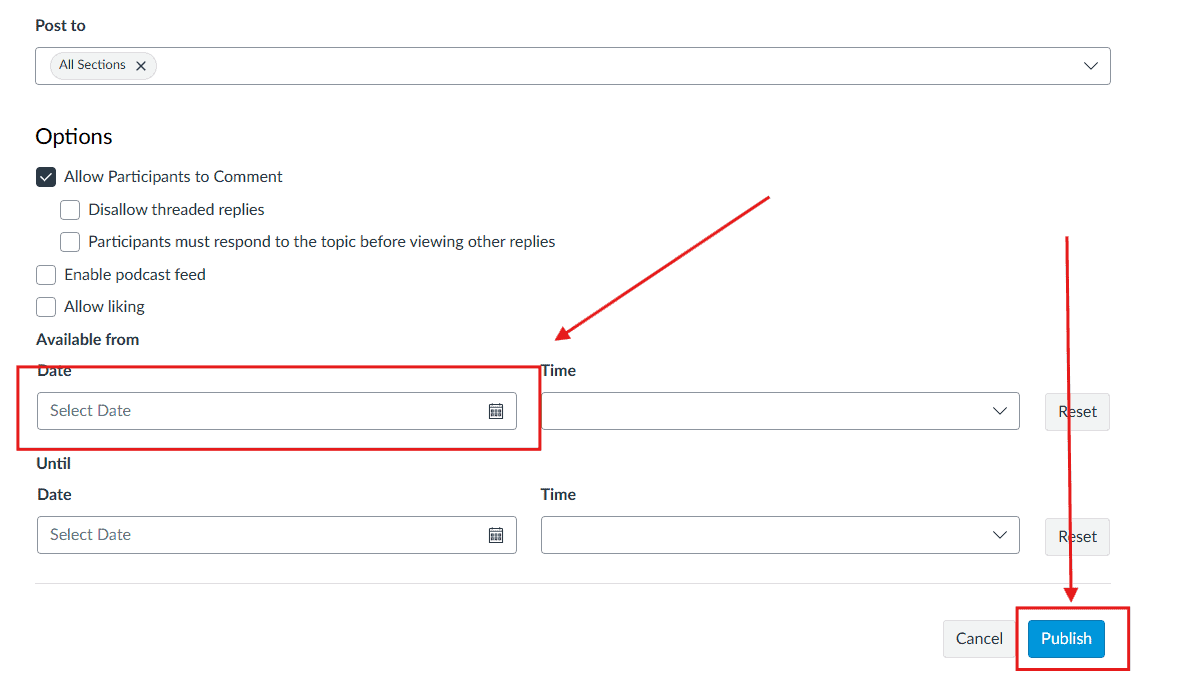
Click Publish to make the announcement visible to students or delay posting.

Uploading to Canvas Studio (Quick Guide)
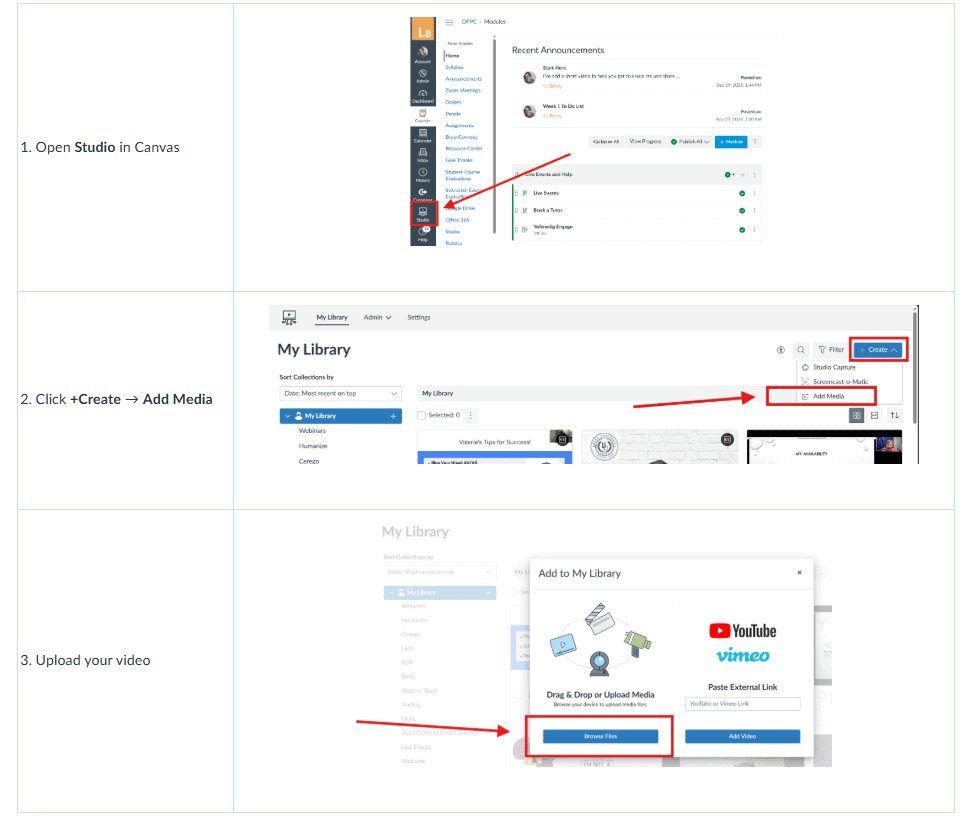
Screenshot showing how to open Studio in Canvas LMS for BU Resource Center.

📌Once your video has processed, always add closed captions! Click here to learn more. 

Copyright 2025 | Bryan University | 350 West Washington Street, Tempe, AZ 85281

BRYAN UNIVERSITY LOGO SEAL

Copyright 2025 | Bryan University | 350 West Washington Street, Tempe, AZ 85281