
Salesforce Quick Guide for Full-Time Faculty & Program Directors

Salesforce is your central place for student information, alerts, communication history, and support requests. This guide will walk you through the most common tasks step by step so you can learn by doing. For each section, you will explore the feature in Salesforce and complete a short hands-on activity before moving to the next section. You will also use a tracker sheet to record your progress and make notes as you go.

Click here to download your tracker sheet. Before you begin, make a copy of the file and then share your copy with Valerie Akbulut.

Salesforce Homepage

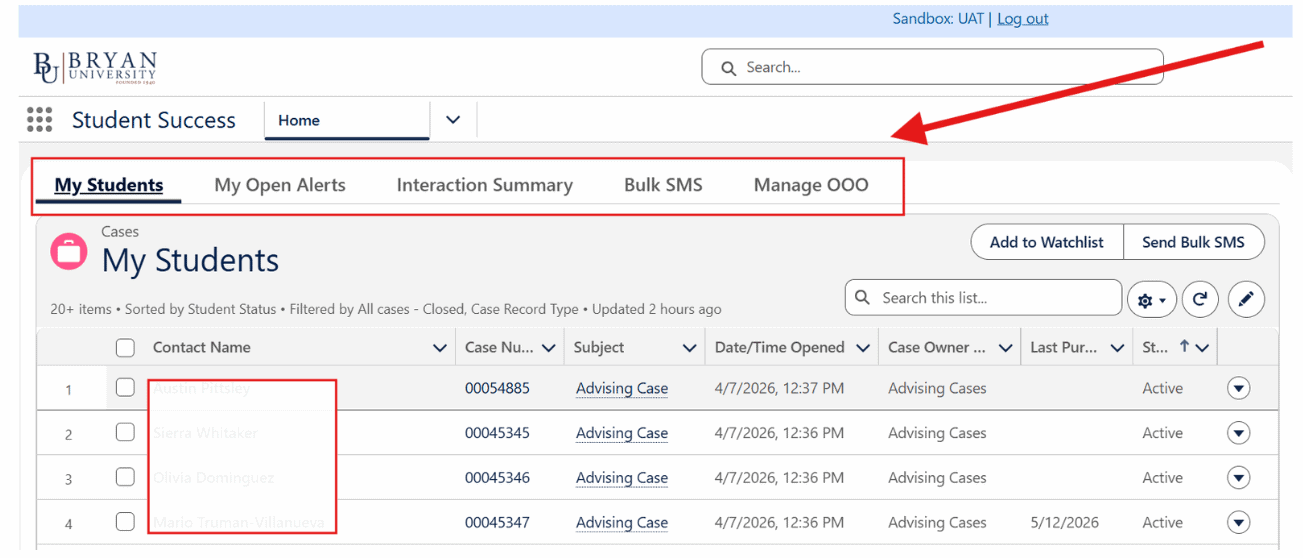
The Salesforce Home Page provides quick access to the tools and information you use most often to support students.

FeatureDescription
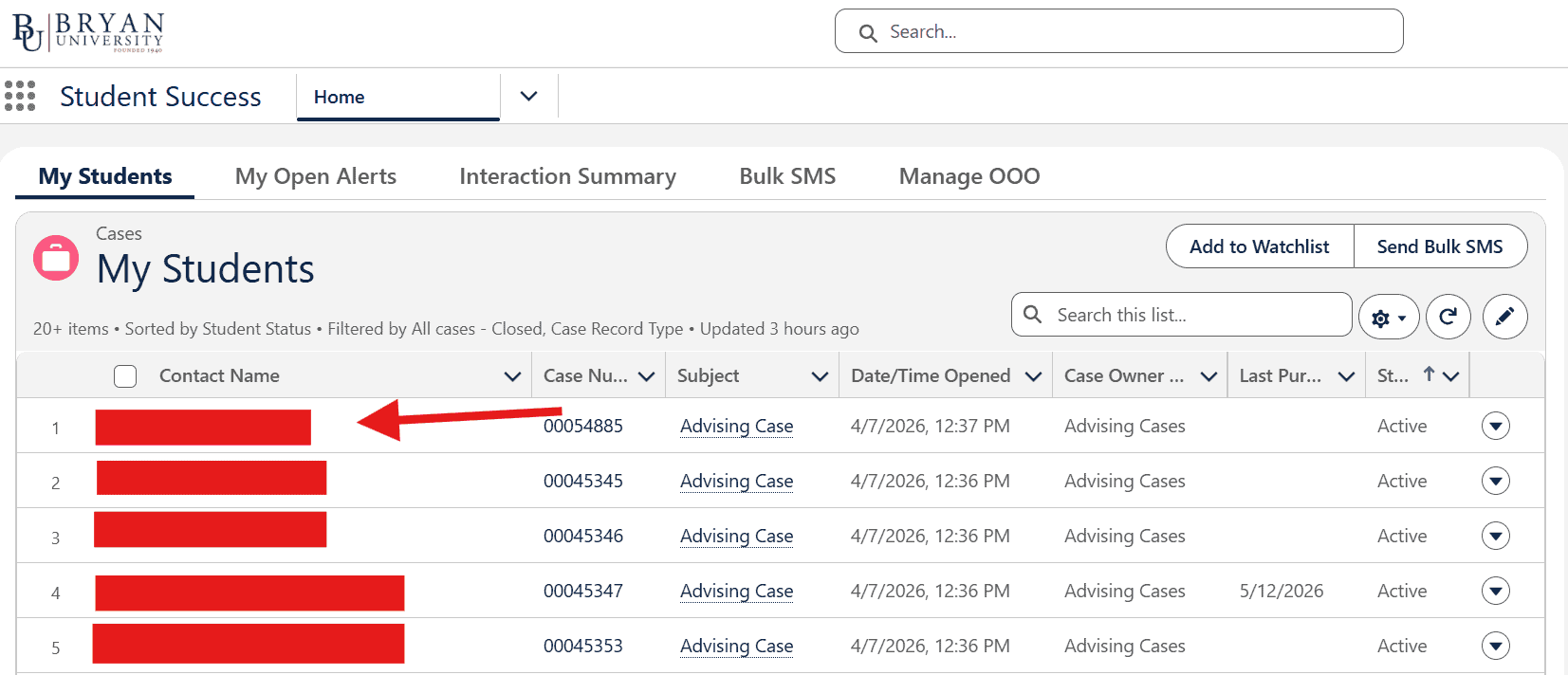
My StudentsView and access students assigned to you and open cases
My Open AlertsReview changes that may require attention
Interaction SummaryView recent student engagement and communication activity
Bulk SMSSend text messages to groups of students
Manage OOOSet your Out of Office status when unavailable and assign a delegate 
Screenshot of Bryan University BU Resource Center's 'My Students' page showing student cases and advising details.
Your Turn icon with upward arrow inside a speech bubble for motivational message.

📝 Try It Yourself

  1. Log in to Salesforce.
  2. Locate the My Students 
  3. Locate the My Open Alerts
  4. Locate Interaction Summary
  5. Locate Bulk SMS
  6. Find the Manage OOO option.
  7. Spend a few moments exploring the information available in each section.


✅Success Check: You can locate all the tabs on the homepage. 
Finding a Student

There are two primary ways to locate a student:

➡️ Note: In Salesforce, clicking a student’s name automatically opens their full student record.

Option 1: Search for a Student

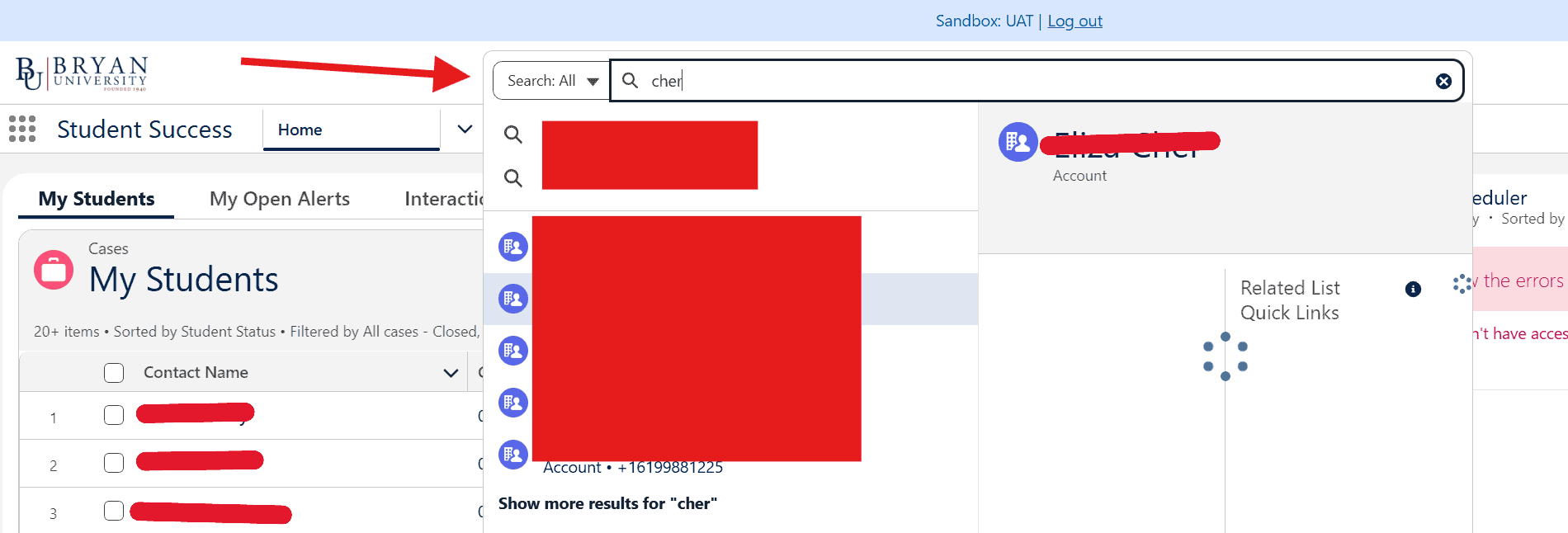
  1. Use the Search Bar at the top of the page.
  2. Enter the student’s name or ID number.
  3. Select the student from the search results to open their record.
Screenshot of Bryan University student portal showing search bar with 'cher' query and search results.

Option 2: Access My Students

  1. Navigate to My Students on the homepage.
  2. Review the list of students assigned to you.
  3. Select a student’s name to open their record.
Screenshot of the BU Resource Center page showing advising cases for students, with contact details and case status.

IMPORTANT CONTEXT: The My Students list is based on case team assignment in Salesforce. Each student has an Advising (or Success) Case, and staff are assigned to that case as members of the Success Team.

Your Turn icon with upward arrow inside a speech bubble for motivational message.

📝 Try It Yourself

  1. Use the Search Bar to locate a student. (If you do not currently have students assigned to you, search for Daine Test Calloway.)
  2. Open the student’s record.
  3. Return to the homepage.
  4. Navigate to My Students and locate the same student. If your My Students list is empty, that’s okay. The list is based on case team assignments and may not be populated for all users yet.
  5. Compare the two methods and determine which feels easiest for you.

✅ Success Check: You successfully opened a student record using both methods.

Student Profile Card

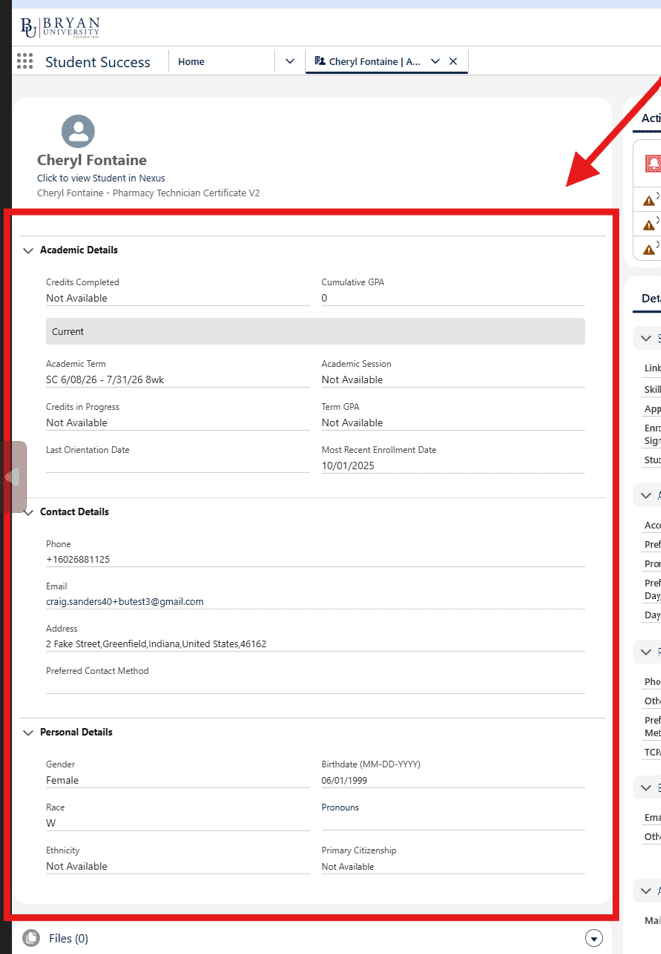
Located on the left side of the student record, the Student Profile/Overview Card gives a quick snapshot of key student information.

Use it to quickly review academic, contact, and personal details before reviewing alerts or creating a case.

➡️ Academic: credits, GPA, term, enrollment
➡️ Contact: phone, email, address
➡️ Personal: demographics, citizenship, etc.

Note: This section is view-only and cannot be edited. Updates to this information must be made in the appropriate system or record source.
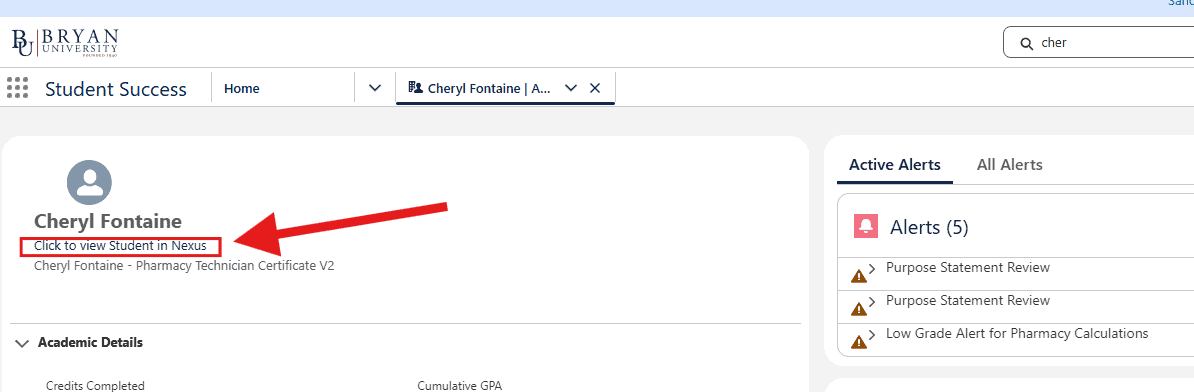
Note: Want to access the student’s information in Nexus? Under the student name in the overview card, select “Click to view student in Nexus”

Screenshot of BU Resource Center page showing a student in Nexus and academic details for Cheryl Fontaine.

****This image is of a test account and does not represent a real student.

Screenshot of Cheryl Fontaine's student profile on Bryan University portal, showing academic, contact, and personal details.
Your Turn icon with upward arrow inside a speech bubble for motivational message.

📝 Try It Yourself

Open a student record and locate the Student Profile/Overview Card. Can you find the following information?

  • Current GPA
  • Enrollment Status
  • Student Email Address
  • Phone Number
  • Current Term
  • Link to Nexus (Once complete, click the Nexus link to see how student information appears in Nexus.)


✅ Success Check: You were able to find GPA, enrollment status, contact information, and current term in the Student Profile/Overview Card, and successfully opened the student in Nexus.
Student Tabs

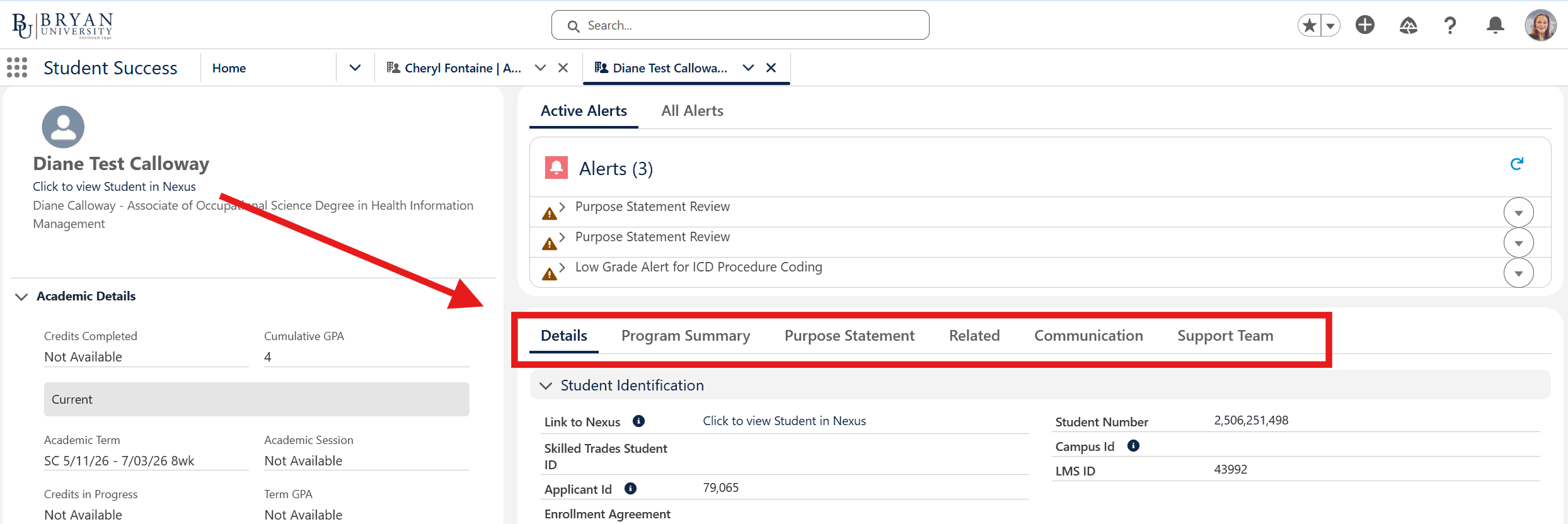
When you open a student record in Salesforce, the information is organized into tabs. Each tab contains a different type of student data and helps you quickly locate what you need without searching through the entire record. Understanding what each tab contains will help you navigate student records more efficiently and ensure you are using the correct information when supporting students.


Tab / AreaMeaning
DetailsStudent profile and basic data
Program SummaryGPA, program, current/past courses
Purpose StatementWhere the student’s purpose lives
RelatedWhere cases and related records may live
CommunicationEmail, tasks, notes, outreach history
Support TeamWho is attached to the student
BU Resource Center image showcasing Salesforce resources for faculty and program directors at Bryan University.
Your Turn icon with upward arrow inside a speech bubble for motivational message.

📝 Try It Yourself

  1. Open a student record from My Students or the Search Bar.
  2. Click through each of the following tabs:
    • Details
    • Program Summary
    • Purpose Statement
    • Related
    • Communication
    • Support Team
  3. Take note of what type of information appears in each tab.
  4. Locate at least one example of:
    • Academic information
    • Communication history
    • Assigned support staff
    • Related records or cases


✅ Success Check: You can confidently navigate between tabs and identify what type of information is stored in each section.
Alerts vs. Cases

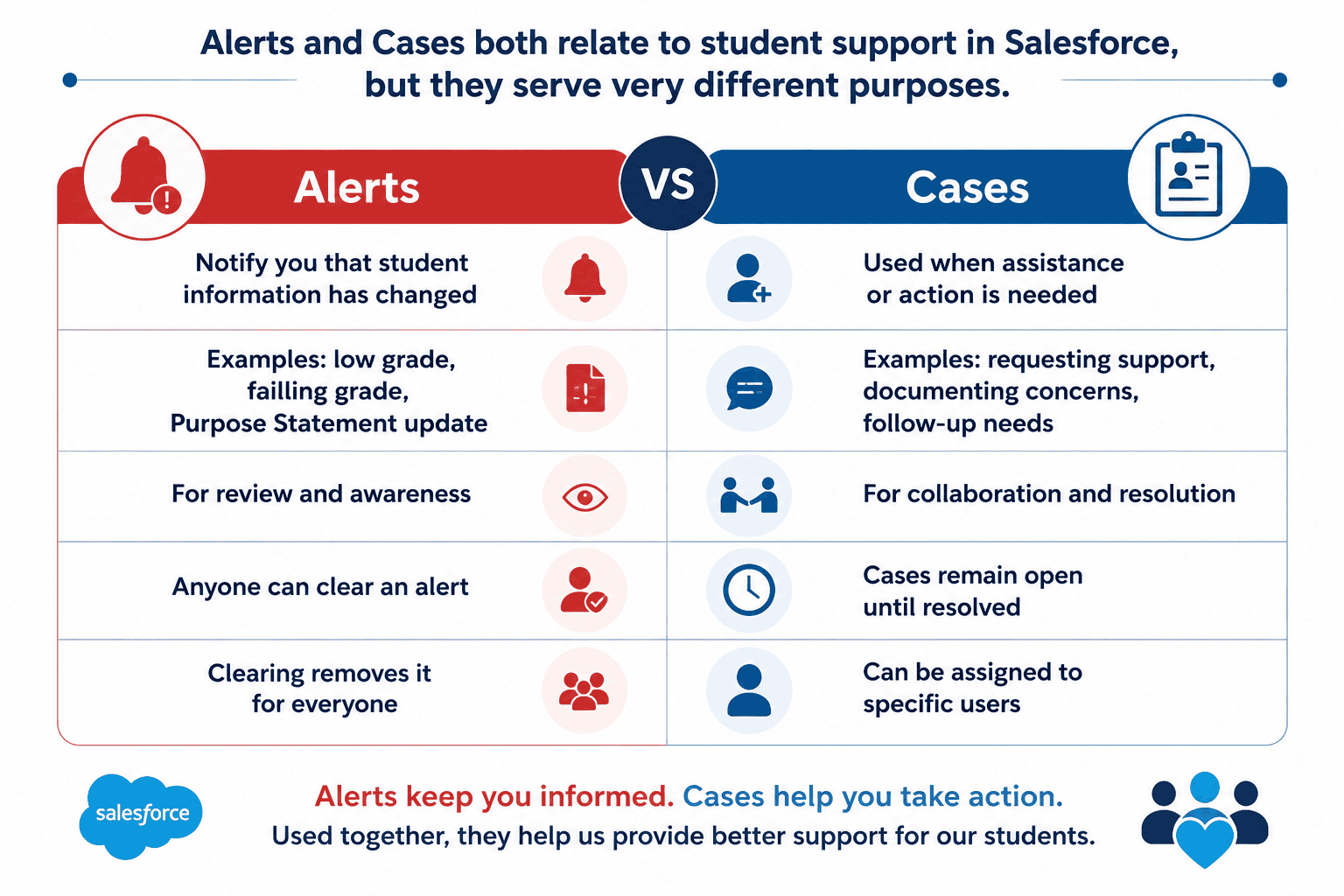
Comparison of alerts and cases in Salesforce for student support, highlighting their different purposes and features.

How to View and Manage Alerts

Alerts keep you informed of changes for your students, such as a failing grade or an updated purpose statement. There are two ways to access alerts in Salesforce.

Option 1: Homepage

  1. Navigate to the Homepage 
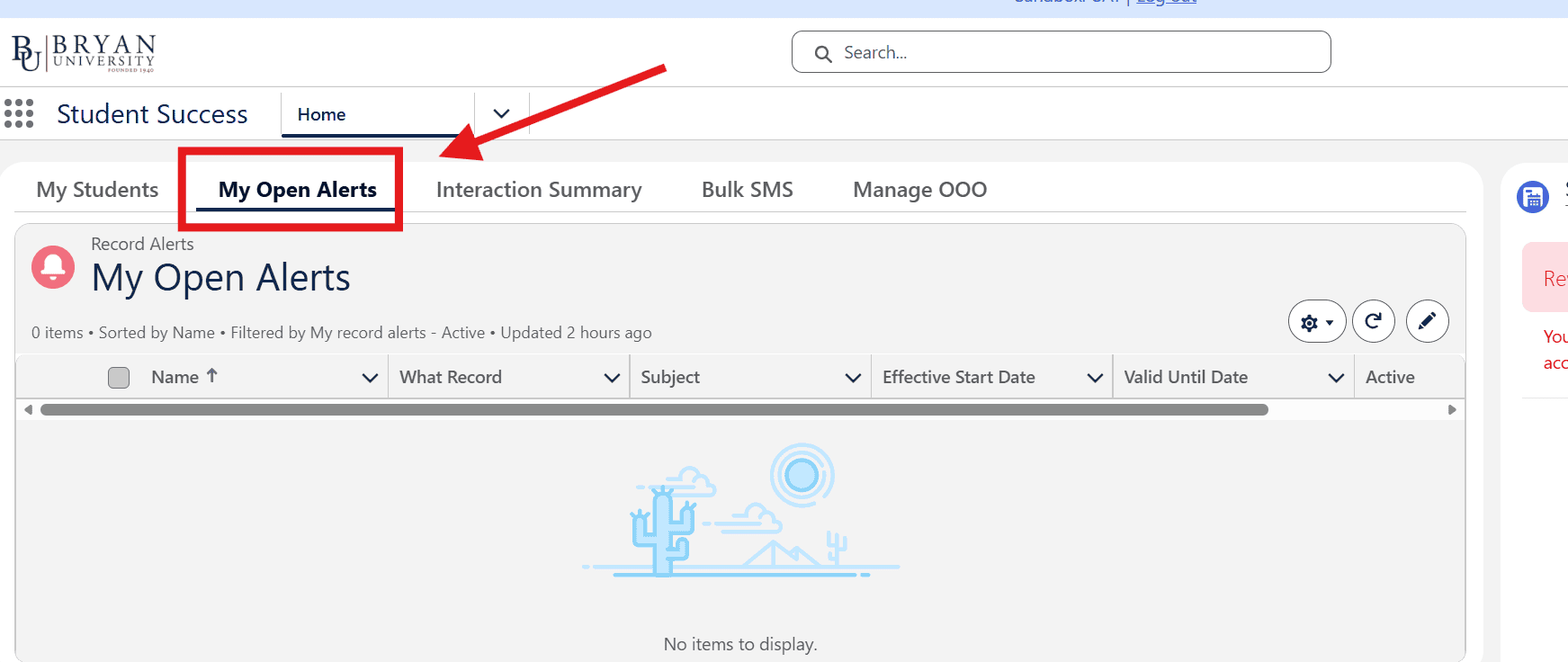
  2. Select My Open Alerts
  3. Review alerts requiring attention
Screenshot of Bryan University Student Success portal showing 'My Open Alerts' section for managing alerts.

Option 2: Student Record

  1. Open the student’s record
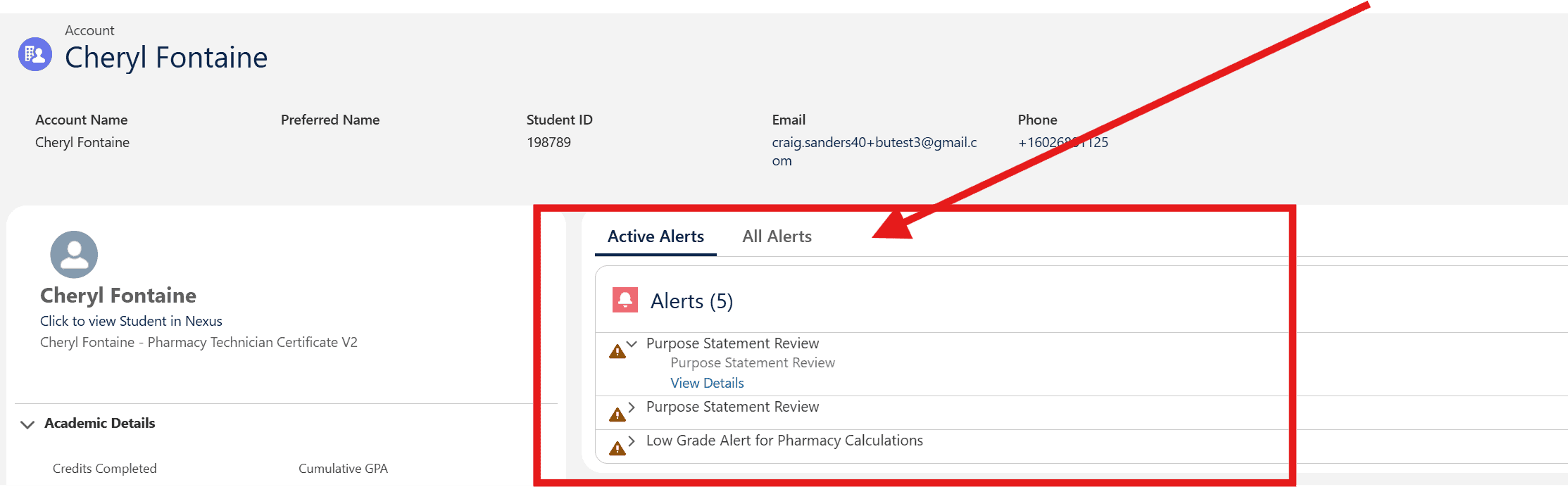
  2. View Active Alerts or All Alerts
  3. Select View Details to review the alert
BU Resource Center image showcasing pharmacy technician resources and alerts for faculty and students.

🎥 Watch: How to View and Clear Alerts in Salesforce

This video demonstrates the two ways to access alerts in Salesforce, how to review alert details, and how to clear an active alert after it has been reviewed.

Note: This video uses a test account and does not represent a real student.

Your Turn icon with upward arrow inside a speech bubble for motivational message.

📝 Try It Yourself

  1. Navigate to My Open Alerts on the home page (located under My Students) If no alerts appear, that is okay—this means there are currently no alerts assigned to you.
  2. Open an alert assigned to you. If none are listed, you may skip this step for now.
  3. Review the alert details.
  4. Select Clear Alert.
  5. Confirm the alert no longer appears in your list of open alerts.
  6. Return to the student record and locate the same alert from the student record’s page. It should be located under All Alerts once cleared
  7. If you do not have any alerts or students assigned yet, please take time to carefully watch the training video, as it walks through the full process step-by-step.


✅ Success Check: You were able to view and clear an alert. 

How to View and Manage a Student Cases

Student Cases help track support requests, interventions, and follow-up activities related to a student. Cases may be created automatically through integrated systems, such as the Student At-Risk Form submitted in Canvas, or manually by faculty. All cases are stored within the student’s record in Salesforce.

🎥 Watch: How to View and Manage Cases

This video demonstrates how to locate and open a student case in Salesforce. It also shows how to manage an active case by:

  • Editing case details
  • Adding notes or updates
  • Sending an SMS/text message to the student
  • Reviewing case status and activity


Note: This video uses a test account and does not represent a real student.

Your Turn icon with upward arrow inside a speech bubble for motivational message.

📝 Try It Yourself

  1. Open a student record. If you do not currently have students assigned, or if you do not see any cases, search for Daine Test Callaway and open that student record.
  2. Navigate to the Related tab
  3. Locate Support Cases
  4. Open an active case. If no cases are visible on your assigned students, use Daine Test Callaway, which includes sample cases for practice.

Once the case is open, locate:

  • Case status
  • Case type/subtopic
  • Priority level
  • Case description
  • Student contact information


✅ Success Check: You can successfully open and view a student case from the Related tab.

Creating a Case

Student Cases are used in Salesforce to document student concerns, support needs, and intervention requests. Full-time faculty and Program Directors (PDs) can create cases directly in Salesforce to support student follow-up and collaboration. Adjunct faculty do not create cases directly in Salesforce. Instead, adjuncts submit the Student At-Risk Form, which automatically generates a case in Salesforce for the student support team to review and act on.

Want to learn more about the adjunct form? Adjunct faculty create cases through the Student At-Risk Form in Canvas. View the Student At-Risk Form guide for additional information about the submission process.

🎥 Watch: How to Create a Student Case

This video walkthrough demonstrates how full-time faculty and PDs create a new student case in Salesforce, including how to:

  • Create a case
  • Enter case details
  • Save the case
  • Add the Program Director as a collaborator so they receive alerts and can assist


Note: This video uses a test account and does not represent a real student.

Your Turn icon with upward arrow inside a speech bubble for motivational message.

📝 Try It Yourself

  1. Open a student record. If you do not currently have students assigned, or if you do not feel confident navigating a live record, search for Daine Test Callaway and use that student for practice.
  2. Locate and select Create Case
  3. Review the information box that appears

Important: Do not save the case. This activity is for practice only to help you become familiar with the layout and required information.

✅ Success Check: You can successfully locate the “Create Case” option, open the case information box, and identify required fields

Closing a Case

Once a student issue has been resolved or no further action is needed, the case should be closed in Salesforce. Closing cases ensures accurate tracking of student support activity and keeps records up to date.

🎥 Watch: How to Close a Student Case

This video demonstrates how to locate and close a student case in Salesforce.

You’ll learn how to:

  • Open a student record
  • Navigate to the Related tab
  • Locate the Support Cases section
  • Open the correct case
  • Select Close Case
  • Complete the case closure process


Note: This video uses a test account and does not represent a real student.

Important Note for Program Directors: Program Directors should ensure the feedback loop is closed before closing a case. This means confirming that communication, updates, and follow-up actions have been completed with all relevant faculty or support staff.

Your Turn icon with upward arrow inside a speech bubble for motivational message.

📝 Try It Yourself

  1. Open a student record. If you do not currently have students assigned, or if you do not see any cases available, search for Daine Test Callaway and use that record for practice.
  2. Navigate to the Related tab.
  3. Locate the Support Cases section.
  4. Open a case by selecting the Case Number.
  5. Locate the Close Case button on the right-hand side of the page.


Important: Do not select Close Case. This activity is intended to help you become familiar with where the option is located.

✅ Success Check: You successfully located the Close Case option within a student case.

Copyright 2025 | Bryan University | 350 West Washington Street, Tempe, AZ 85281

BRYAN UNIVERSITY LOGO SEAL

Copyright 2025 | Bryan University | 350 West Washington Street, Tempe, AZ 85281